 Kamaipay PK
KamaiPay Account and Transaction History
A visual explanation of the account and transaction menu shown in the supplied KamaiPay app screenshots.
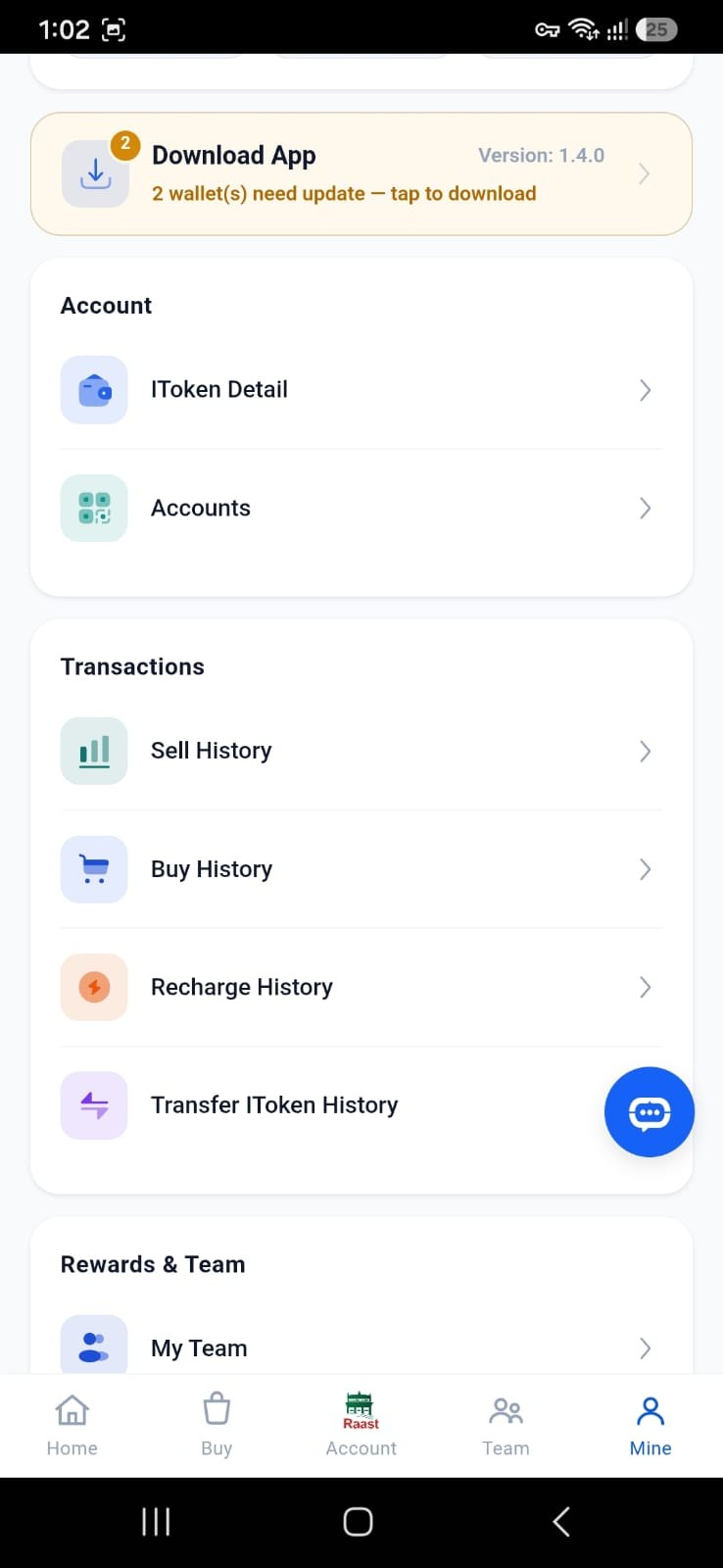
Mine section and its menu
The supplied screenshot groups account options and transaction records. Visible entries include IToken Detail, Accounts, Sell History, Buy History, Recharge History and Transfer IToken History. A Rewards & Team section appears further down the screen.
Menu availability and labels may change with app updates or account status.
Accounts page
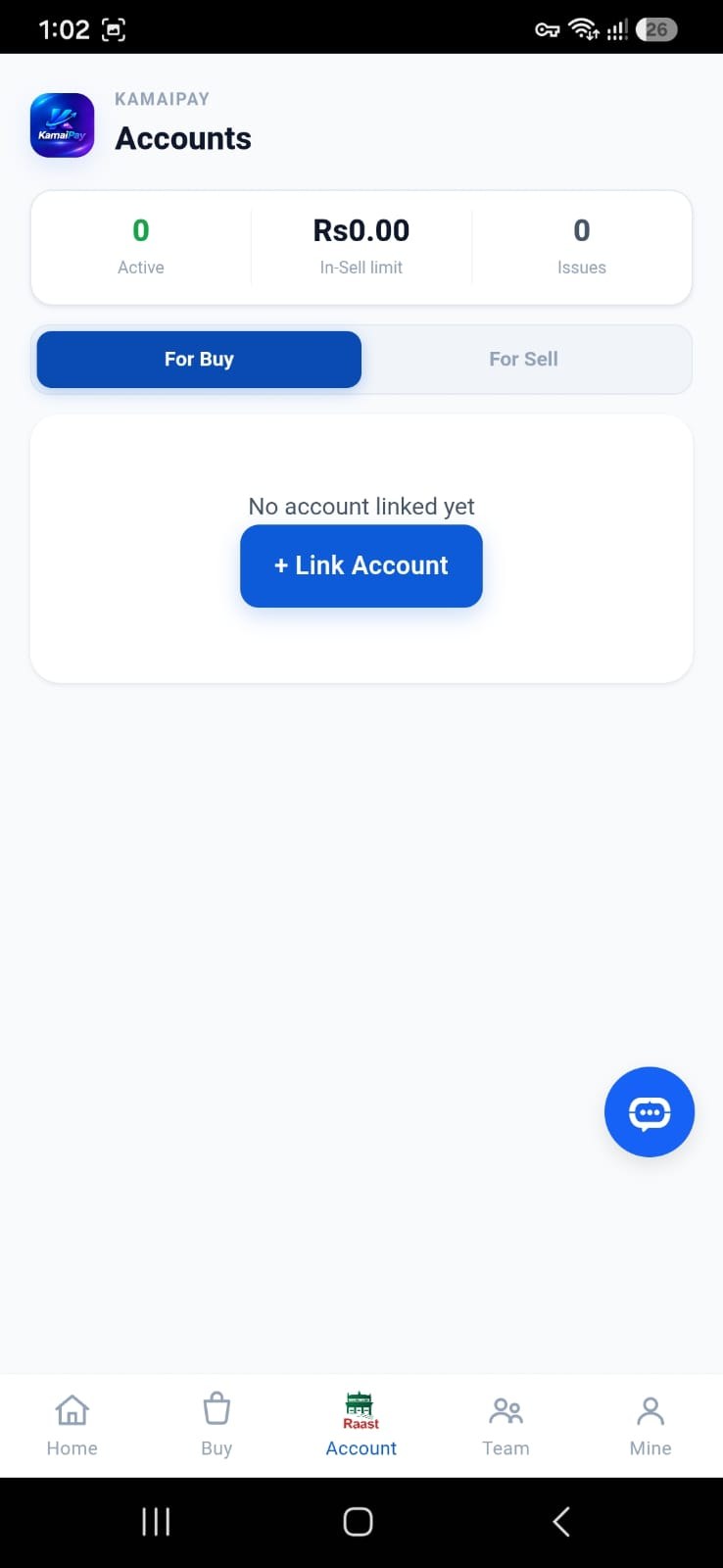
The Accounts page displays an Active count, In-Sell limit and Issues count, plus separate For Buy and For Sell tabs. The screenshot shows a message that no account is linked yet and a Link Account button.
Check account status
Review any issue notices and account limits shown in the app. Do not assume a payment account is available for both transaction directions until the current app confirms it.